Book and Run a Meeting in the Conference Room
IT / Tech · Updated May 8, 2026
- 01
Open Outlook or Teams and create a new meeting
In Outlook (desktop or web) click New Event / New Meeting. In Teams, go to Calendar and click New Meeting. Either client works — both write to the same calendar.
- 02
Add the conference room as an attendee, not just a location
Type the room mailbox name in the Required Attendees / Add Attendees field and pick it from the list. The room shows up with a small building icon — that's how you know it's a resource and not a person. You can also use the Room Finder pane to browse rooms by floor or building.
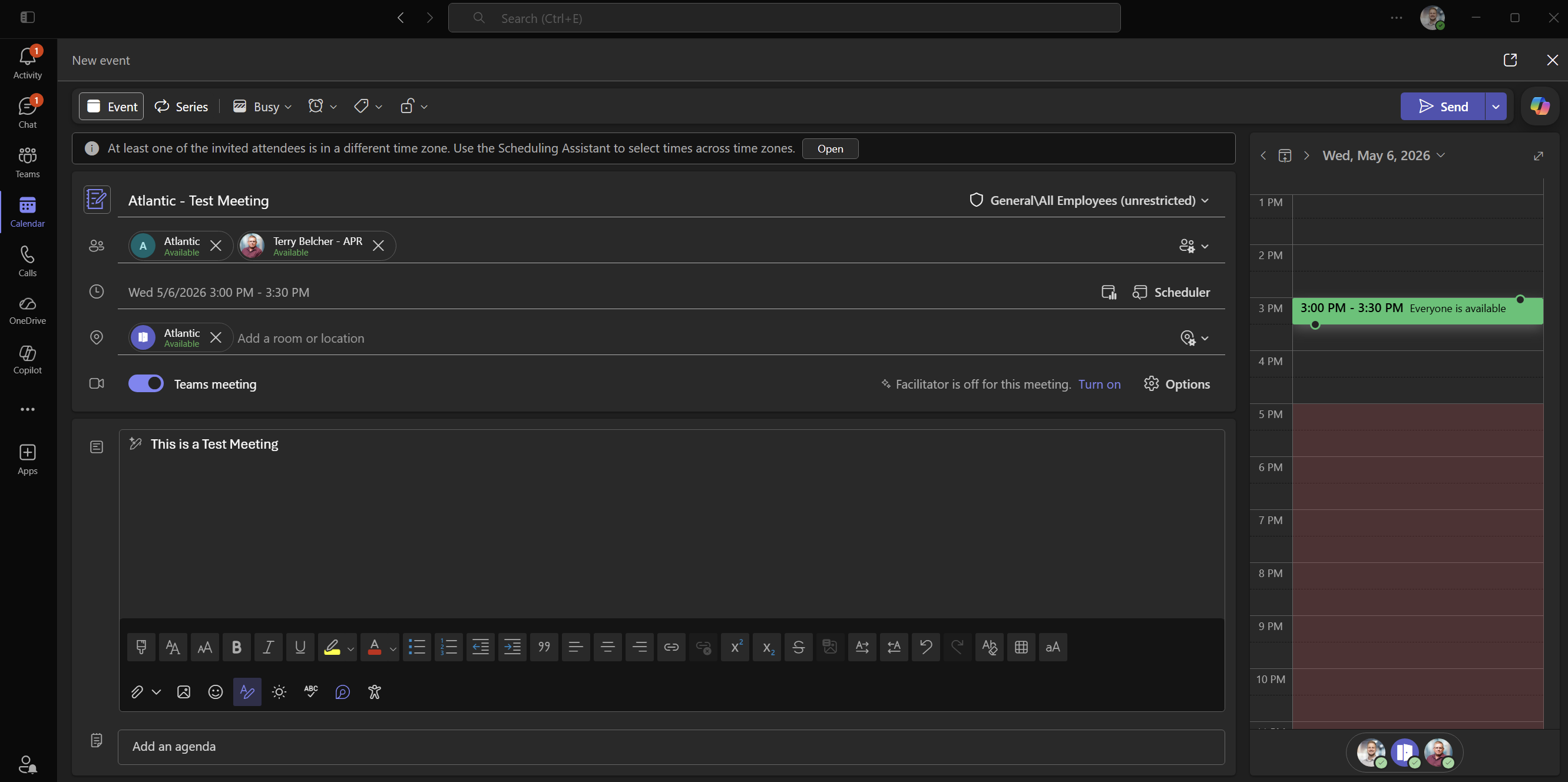 Warning — The room mailbox must be an attendee / location.
 - 03
Confirm the room is free using Scheduling Assistant
Open Scheduling Assistant (Outlook) or use the suggested times pane (Teams). The row for the room should be clear — no blue/busy block — across your meeting window. If it's busy, pick a different time or a different room.
- 04
Make sure the Teams Meeting toggle is on
Verify the meeting is set as a Teams Meeting. In Outlook this is a toggle near the top of the meeting form. In Teams it's on by default. The CTP25 will only show a Join button for Teams meetings.
Warning — A regular calendar event (no Teams link) will appear on the panel but won't have a Join button. - 05
Send the invite and wait for auto-accept
Click Send. Within about a minute you'll get an email from the room mailbox: Accepted (you're booked) or Declined (someone else has it — pick a new time). The meeting will now appear on the CTP25 in the room at the scheduled time.
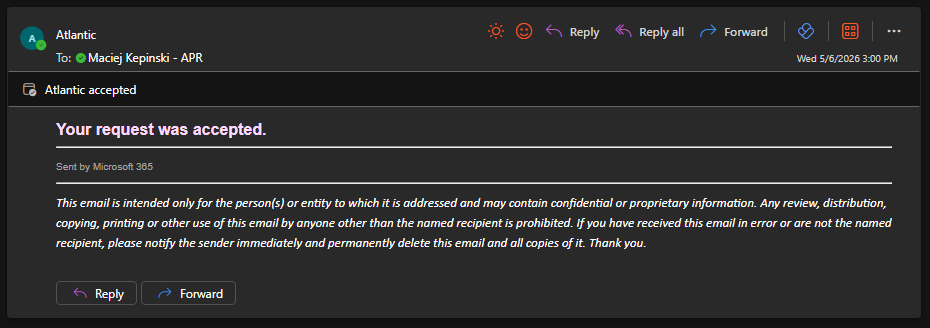 Tip — Auto-accept only fires if the room was free. If you don't see an Accepted email within a couple of minutes, double-check Scheduling Assistant.
 - 06
Walk into the room — the CTP25 wakes automatically
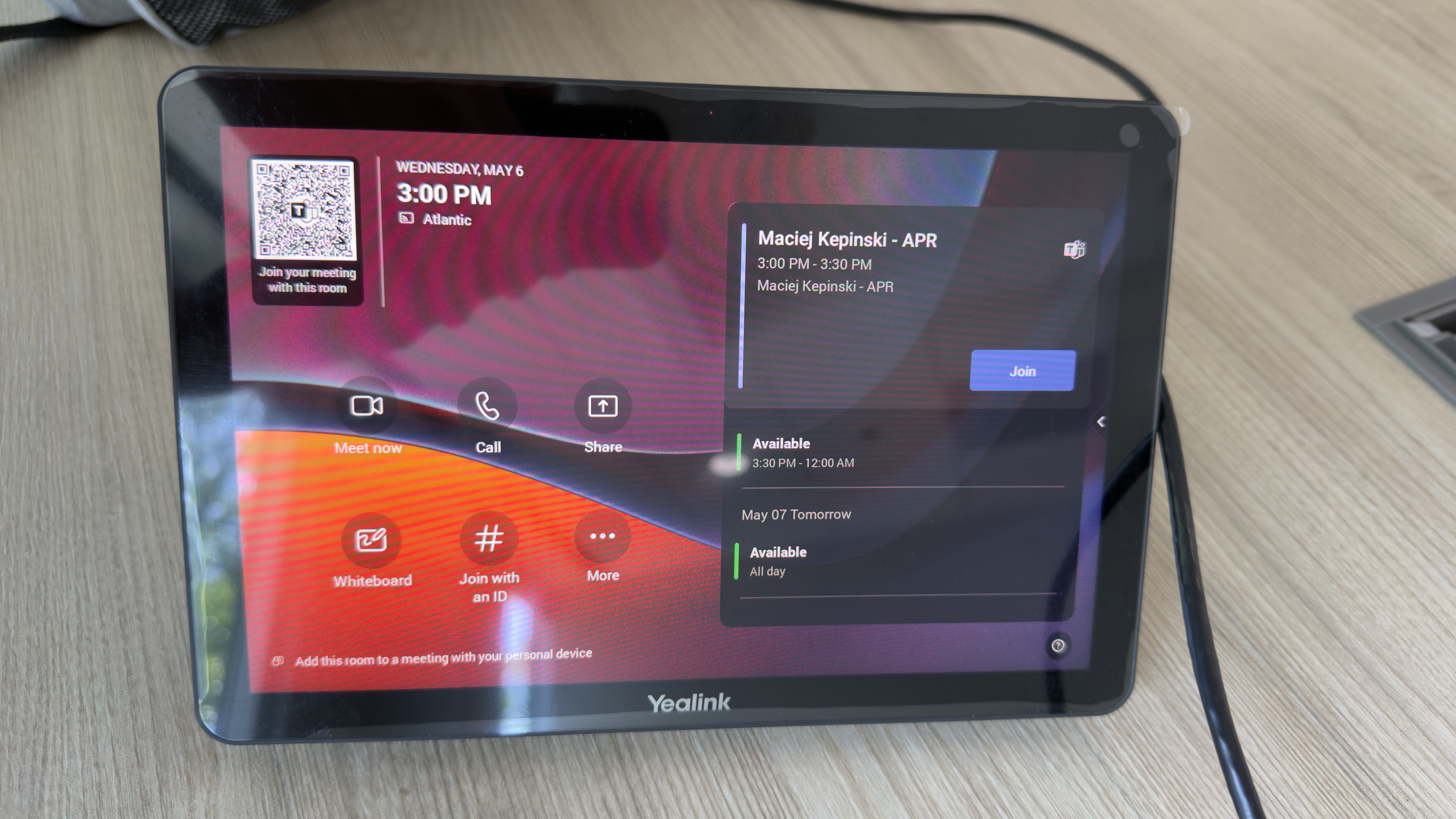
When you enter, the CTP25 touch panel on the table wakes up. If the screen is dark, tap it once. The home screen shows the room name, the time, and any meetings scheduled for today.
- 07
Tap Join on the meeting card
Your meeting appears on the home screen as a card with the meeting title and start time. Tap Join. The MeetingBar turns on the front-of-room display, the camera, and the microphone. You're in.
- 08
Use the in-call controls on the CTP25
Once joined, the CTP25 shows the call controls: mute mic, camera on/off, volume, participants, and chat.
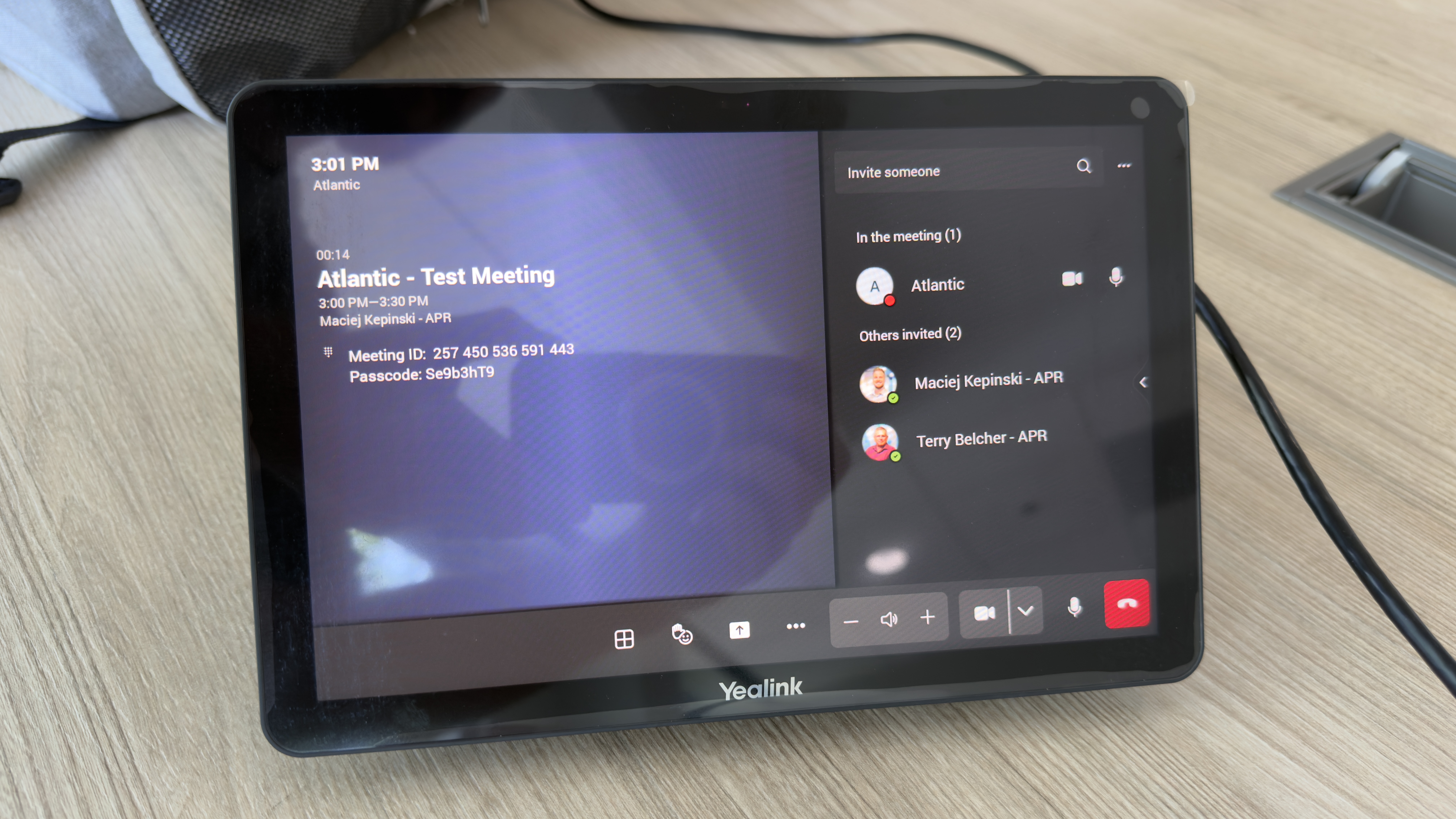 Tip — If audio is missing, the most common fix is the mute button on the CTP25. Check it before troubleshooting anything else.
 - 09
Share content from your laptop
Two options. Wired: plug your laptop into the USB-C cable coming out of the CTP25 on the table and your laptop screen should automatically mirror onto the TV and meeting. Wireless: open Teams on your laptop, join the same meeting, and click Share. Don't connect your laptop's mic or speakers. Keep audio on the room system to avoid echo.
Warning — If you join the meeting from your laptop without muting your laptop's mic and speakers, you'll get loud feedback. Always mute your laptop when sharing in-room. - 10
Leave the meeting when you're done
On the CTP25, tap the red Hang Up button. The room display goes back to standby. The room mailbox is automatically free after your meeting's end time, so the next person can book it.